

How to Setup Lynk Ring
Share your portfolio, unlock your computer, and lot's more, from just a tap!
I made these Lynk rings that tap to open up my portfolio, so I can connect with people on the go, without having to bring out my phone. They also serve as a key to unlock some of my projects, including:
Starting up my computer;
Authentication for my cyberdeck;
Locking and unlocking my door (tutorial for that coming soon!)
You can try one out here:
I’ll be making tutorials on all the cool projects we can make with this thing and for now, we’ll be going through how to setup your ring out of the box, to open any link on the web. This tutorial applies to any writeable NFC tag you want to use.
Step 1: Download NFC Tools App
Don’t worry, you can delete it right after. I do find it useful for updating my links whenever I’m doing something new.
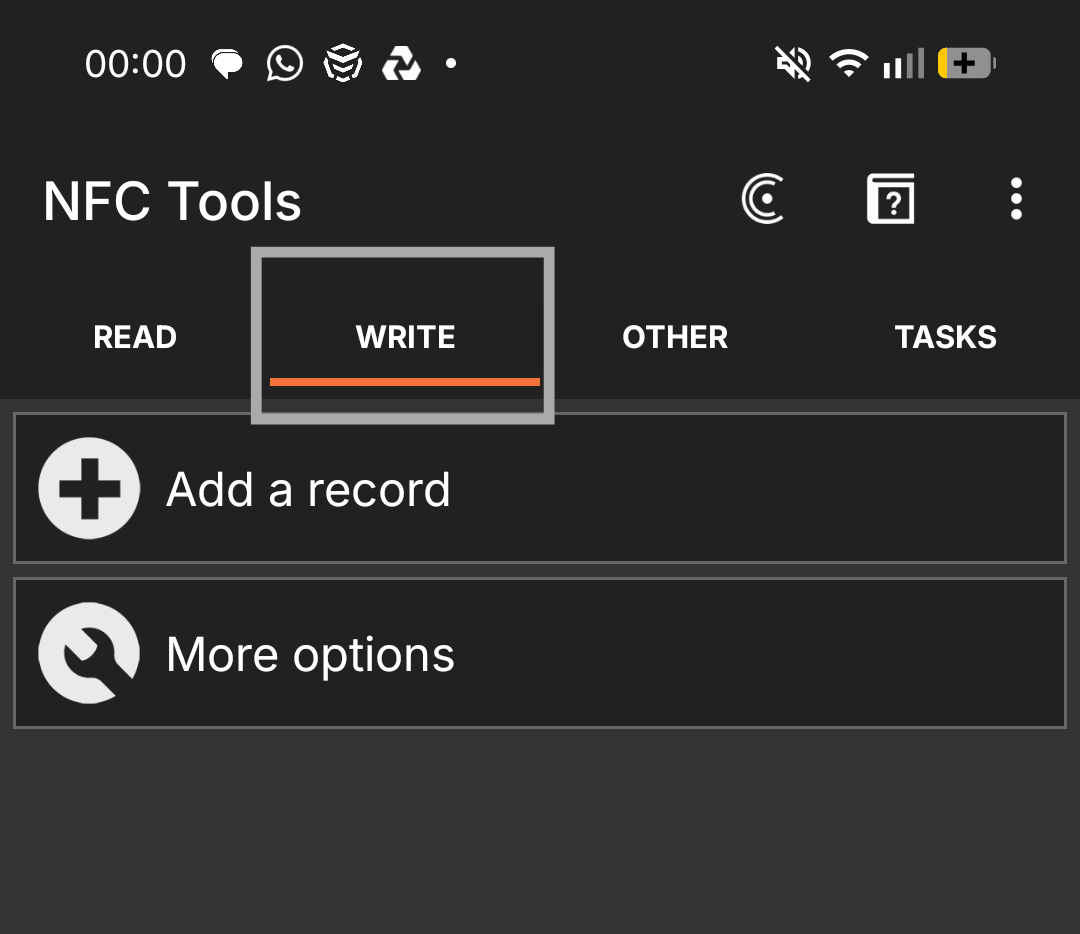
Step 2: Go to the Write tab
Click on the WRITE tab at the top of the app.
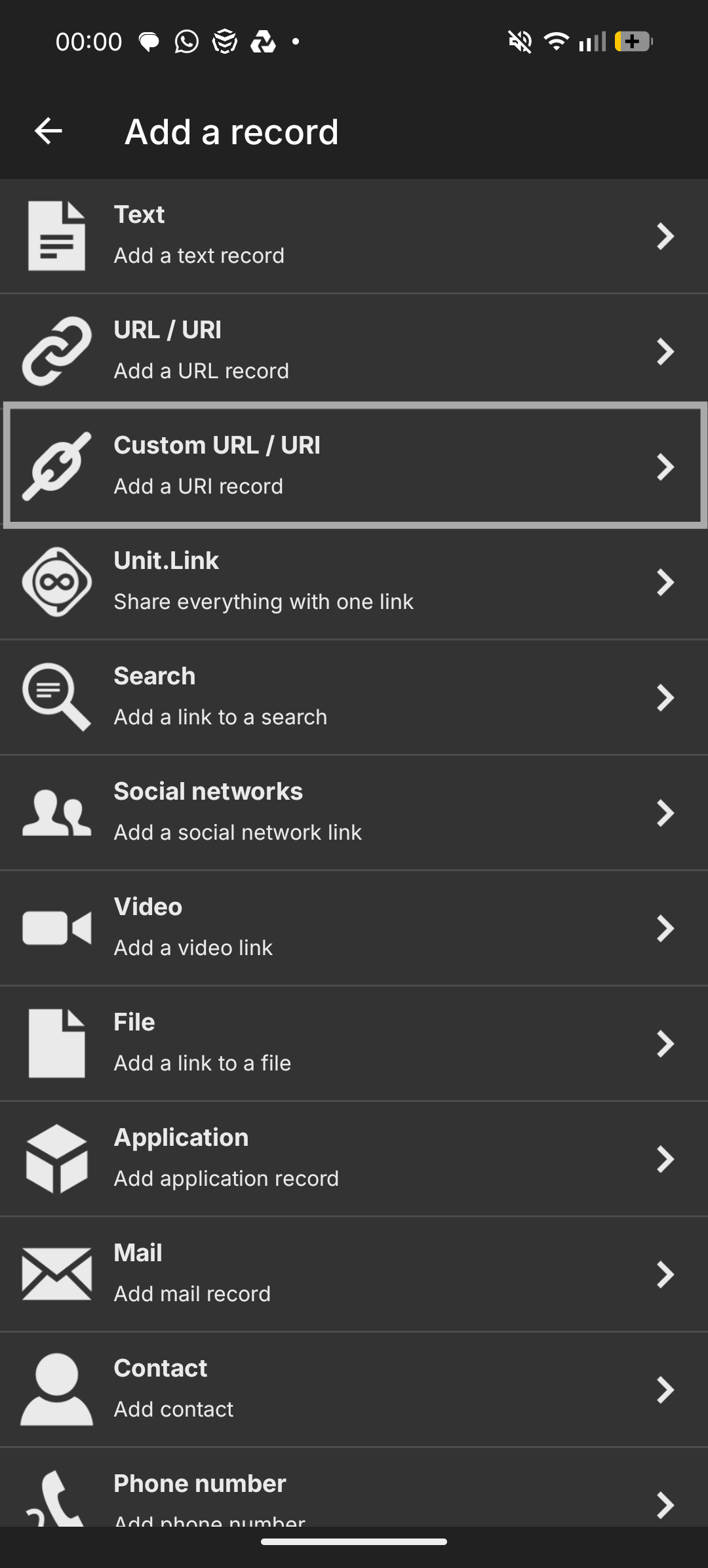
Step 3: Select the type of record to store
For this tutorial, we’ll be using the Custom URL/URI. I’ll select it, then add in my URL.
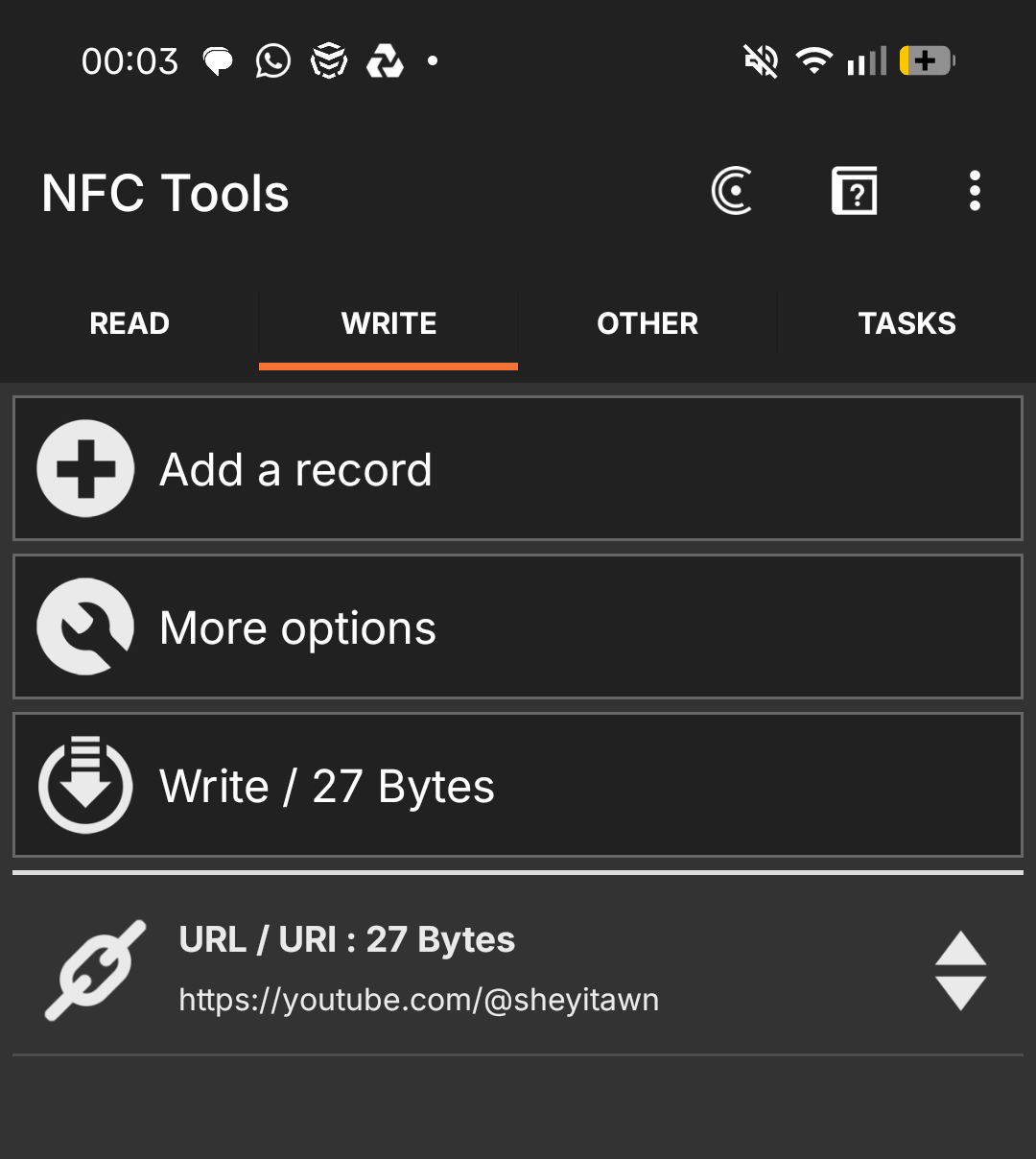
Step 4: Write onto Ring
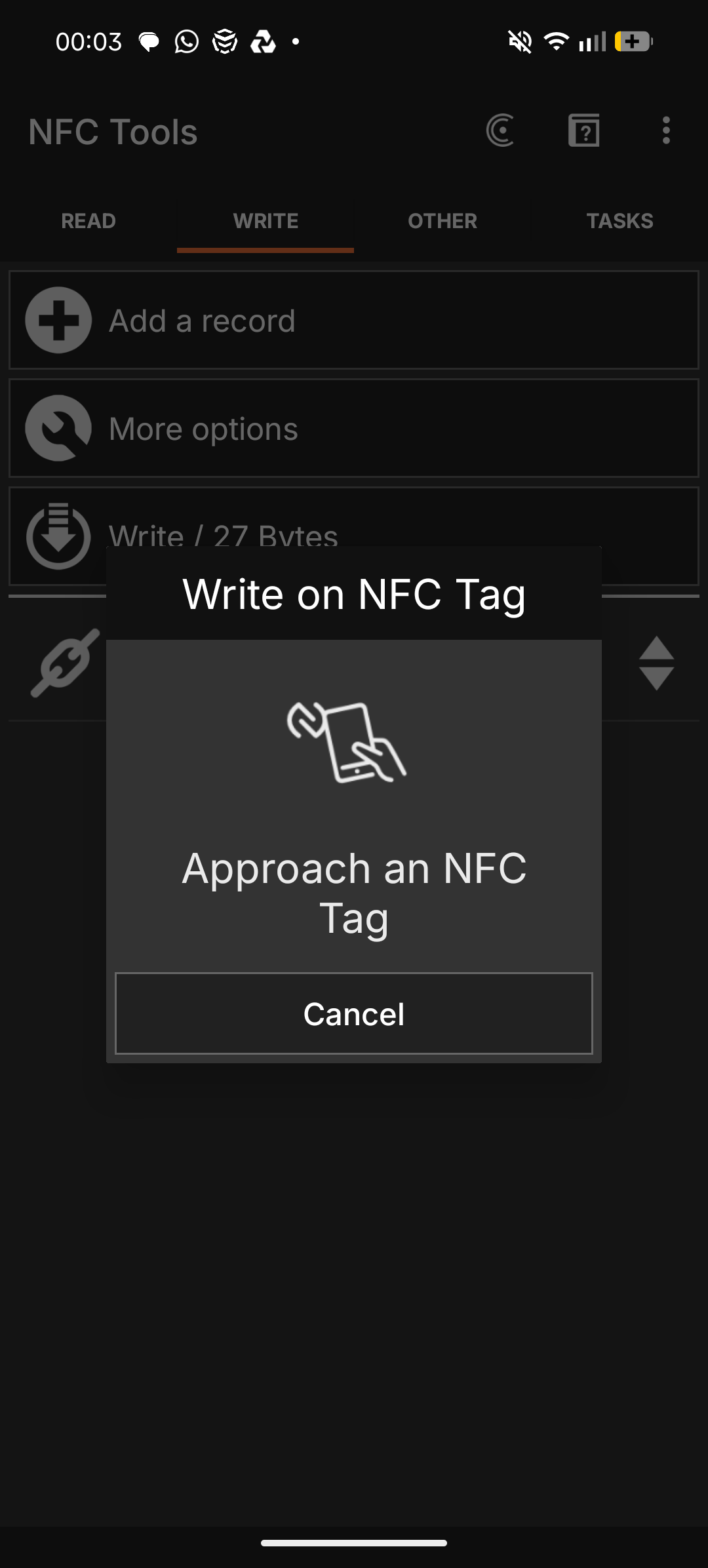
Click ‘Write / x Bytes’. This should open a prompt to tap your ring. Simply tap the ring at the back of your phone where the NFC reader is, till you get a confirmation that the reading was successful.
Finding the NFC Reader
The position of the RFID/ NFC reader varies from phone to phone. You can find it by moving the ring across the back of the phone until you find it. It is located the same place that you tap to pay with contactless.
There you have it! Now, every time you tap on the ring, it will open up your link! Next time, I’ll be showing you how to unlock your computer in 1 tap using the same ring, with no further configuration needed. (I told you you could delete the app)